How to Move Your Loom Library to Castify: Bulk Video Import for Business Teams
Nov 18, 2026
How to Move Your Loom Library to Castify: Bulk Video Import for Business Teams
Castify now imports up to 100 Loom videos at a time, plus bulk uploads of 100 videos from Google Drive or 10 from your computer. See how it works, the limits, and six ways business teams use it.
In short: Castify imports up to 100 Loom videos at a time. Paste public Loom share links, or paste a column of links from a CSV. Castify also bulk uploads up to 100 videos from Google Drive or 10 from your computer in one batch.
The import runs on Castify's servers, so you can keep working while it finishes. Your Loom videos land in their own Loom Imports folder. From there, every video gets transcripts, captions, translation, dubbing and AI docs.
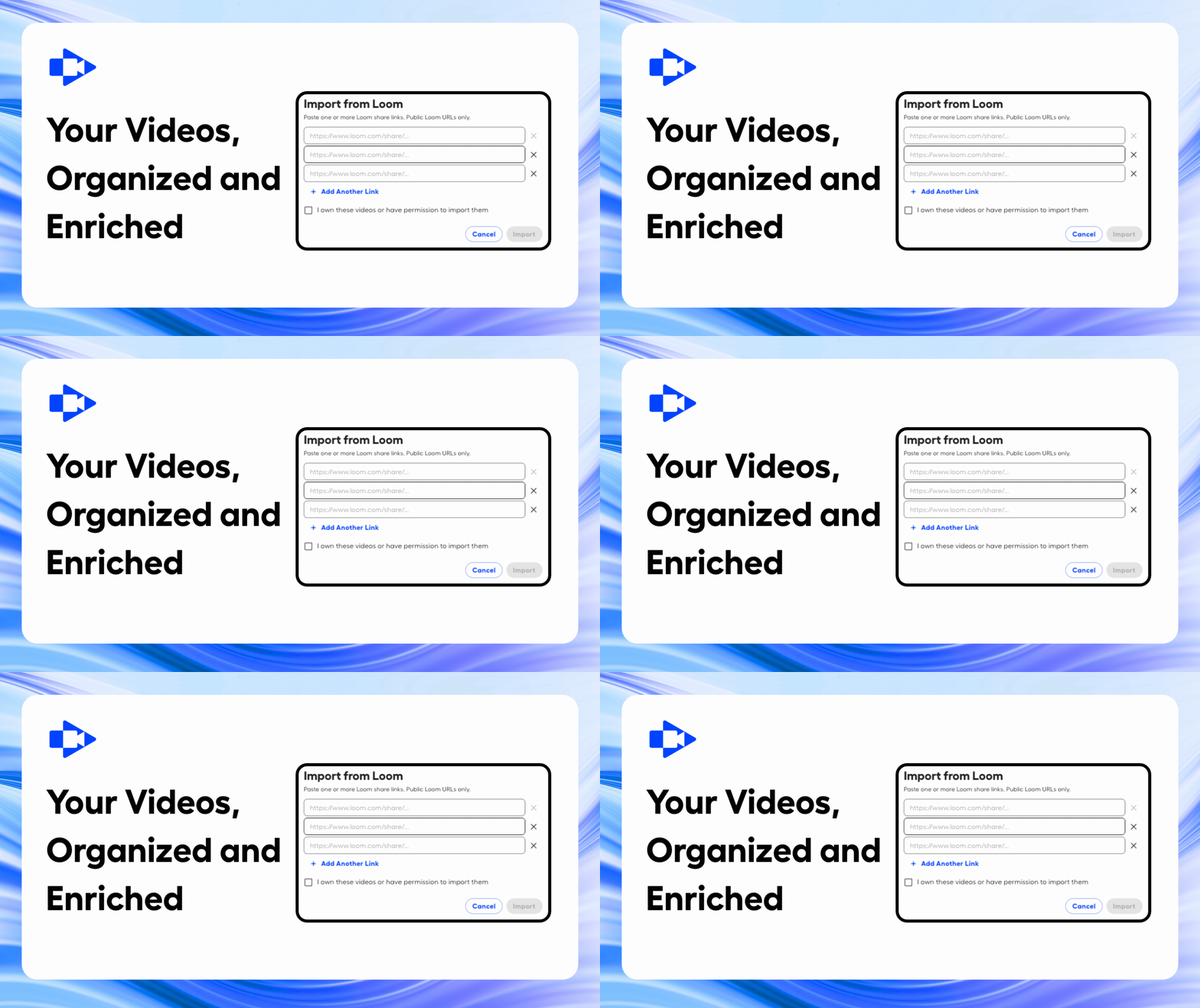
Paste your Loom links, confirm you own the videos, and import.
In summary: if your team's videos are spread across Loom, Google Drive and laptops, you can bring them into one Castify library in minutes, then make each one more useful.
Can you import Loom videos into Castify?
Yes. Castify imports up to 100 public Loom videos per batch. For larger libraries, run several batches one after another. You may only import videos you own.
How does bulk video import work in Castify?
Castify brings in videos from three sources. Each one starts from Add Video and ends in an upload drawer that shows progress for every video.
Loom: up to 100 public links per import. Runs on Castify's servers, so you can leave the page. Videos land in an auto-created Loom Imports folder.
Google Drive: up to 100 videos per batch from any Drive folder. Runs on Castify's servers, so you can leave the page.
Your device: up to 10 files per batch. Stay on Home, Library, Videos or Shared with Me until the queue finishes.
Every source has the same per-video limits: 5 GB and 3 hours.
A few more things to know:
One batch at a time. Add Video is paused while a batch runs.
Failed videos can be retried. The drawer shows a Retry button for any video that didn't make it.
You'll know when it's done. An in-app notice confirms the batch. Loom imports of 5 or more videos also send a confirmation email.
Free plans have a video limit. If a batch would go over it, Castify shows how much room you have and offers an upgrade.
How do business teams use bulk video import?
Most teams use it for one of six jobs: switching tools, building a training library, or getting more out of videos they already have.
1. Switching from Loom to Castify
The hardest part of changing video tools is moving the old library. With Castify, a team can import 100 Loom videos per batch and work through a large library in a few rounds. Nothing has to be re-recorded.
Best for: teams consolidating tools after a pricing change, a merger or a software review.
2. Sales: one home for demos and prospect videos
Sales reps often record personal demos in Loom and keep product walkthroughs in Google Drive. Bulk import puts both in one library. Reps can then add captions and translations so the same demo works for buyers in other regions.
Best for: account executives, sales engineers and enablement teams.
3. Employee onboarding and training
Onboarding videos tend to pile up across folders and tools. Import them into one Castify folder, then add transcripts so new hires can search and skim. Turn a long walkthrough into a written doc for people who prefer to read.
Best for: HR, L&D and team leads who onboard new staff.
4. Customer success and support
Support teams record dozens of how-to videos for customers. Bulk upload them from Drive, add captions for accessibility, and dub them into the languages your customers speak.
Best for: CS managers, support leads and implementation teams.
5. Product and engineering updates
Product teams share feature demos, bug reports and release walkthroughs. Pull those recordings off laptops with device upload, 10 at a time. Then generate a summary doc so stakeholders get the key points without watching the full video.
Best for: product managers, designers and engineering leads.
6. Internal communications and leadership updates
All-hands recordings and leadership updates are often scattered across shared drives. Import them from Google Drive, 100 at a time, into one organized library. Add translations so global teams hear the same message.
Best for: internal comms, executive assistants and people ops.
How do I import Loom videos into Castify?
Before you start, set each video to public in Loom and make sure it's one you own.
Gather your Loom share links. Copy the public share link for each video, or export a list of links into a CSV.
Open the importer. In Castify, click New Video and choose Import from Loom.
Add your links. Paste one link per row, or paste a whole column from your CSV. You can add up to 100 links per import.
Start the import. You can close the page; the import keeps running on Castify's servers.
Find your videos. They appear in a new Loom Imports folder. You'll get an in-app notice when the batch finishes, plus an email for imports of 5 or more videos.
Tip for large libraries: import in batches of 100, one batch at a time. Check that every video is public before each batch.
How do I bulk upload from Google Drive or my computer?
Click New Video, or Add Video inside a folder.
Choose Google Drive (up to 100 videos) or Upload from Device (up to 10 videos).
Select your files and start the upload.
Watch progress in the upload drawer. Each video appears in your library as soon as it finishes.
For device uploads, stay on Home, Library, Videos or Shared with Me until the queue finishes. Leaving those pages cancels the remaining uploads.
What can you do with videos after importing them?
Importing is the start. Once your videos are in Castify, each one picks up tools that make it easier to find, share and reuse.
Transcripts: find the exact moment a pricing question came up in a demo.
Captions: make training videos accessible and watchable on mute.
Translation and dubbing: share one product walkthrough with customers in several regions.
AI docs: turn a 20-minute onboarding video into a one-page checklist.
Folders and sharing: keep sales, support and HR libraries separate.
Loom transcripts carry over when Loom makes them available, but that isn't guaranteed. If a transcript is missing, generate a new one in Castify.
Frequently asked questions
How many Loom videos can I import at once?
You can import up to 100 Loom videos per batch. For larger libraries, run several batches one after another.
Do my Loom videos need to be public?
Yes. Castify can only import Loom videos shared with a public link. You may only import videos you own.
Do Loom transcripts come with the import?
Sometimes. Castify brings over Loom transcripts when they're available, but it can't guarantee them. You can generate a new transcript in Castify for any video.
Where do imported Loom videos go?
They go into a Loom Imports folder that Castify creates for you. You can move or reorganize them afterward.
How many videos can I upload from Google Drive at once?
Up to 100 videos per batch, with a limit of 5 GB and 3 hours per video. You can browse any folder in your Drive.
Can I close the browser during an import?
For Loom and Google Drive, yes. Those imports run on Castify's servers. For device uploads, stay on Home, Library, Videos or Shared with Me until the queue finishes.
Will I get a notification when the import is done?
Yes. Castify shows an in-app notice for every finished batch. Loom imports of 5 or more videos also send an email.
Does bulk import work on the free plan?
Yes, every plan includes bulk upload and Loom import. Free plans have a video limit. If a batch would go over it, Castify shows how many videos you have room for and lets you upgrade or pick fewer.
What if a video fails to upload?
Click Retry in the upload drawer. If it's a Loom video, check that it's set to public. Videos over 5 GB or 3 hours need to be compressed, trimmed or split first.
Bring your whole video library to Castify
Your team's videos are already made. Castify puts them in one place in minutes, then makes each one easier to search, share and reuse.