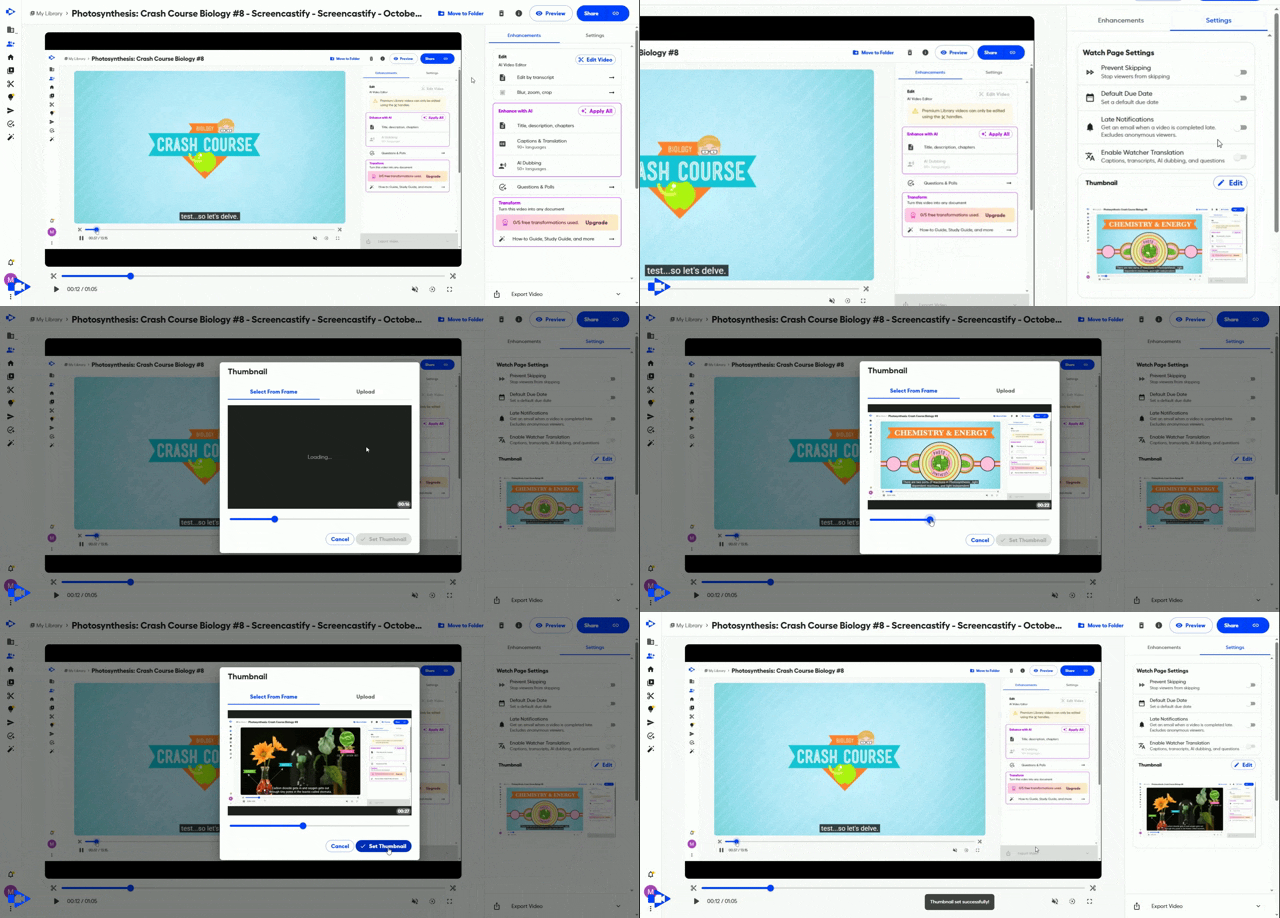
Castify now lets you set a custom video thumbnail. Pick any frame from your recording or upload your own image from the video's Settings tab, so every video makes the right first impression.
In short: Castify now lets you set a custom thumbnail for any video. Pick a frame from your recording or upload your own image, right from the video's Settings tab.
Your thumbnail is the first thing viewers see, often before they decide to press play. Until now, Castify picked that image for you. Sometimes it landed on a great moment. Sometimes it caught you mid-blink, or a blank browser tab.
Not anymore. With custom thumbnails, you decide what your audience sees first.
What are custom thumbnails in Castify?
Custom thumbnails let you replace the default thumbnail on a Castify video with an image you choose. You have two options:
Choose a frame from your video. Scrub to the moment that best represents your content, like a key slide, a diagram, or you mid-explanation.
Upload your own image. Use a branded title card, a course graphic, or anything you've designed in your favorite tool.
You'll find the option in the Settings tab of any Castify video. Your new thumbnail shows wherever viewers see the video before pressing play.
One note: custom thumbnails work on videos hosted in Castify. They aren't available for YouTube videos, which use YouTube's own thumbnail settings.
Why do video thumbnails matter?
A clear thumbnail tells viewers what a video is about before they commit to watching. That matters whether you’re sharing with a team of 10 or a company of 10,000.
L&D and enablement teams can use a title card with the course name and module number, so employees find the right training fast in your LMS or knowledge base.
HR and people teams can add company branding to onboarding and policy videos, making them instantly recognizable as official resources.
Managers and team leads can match thumbnails to team or project branding for walkthroughs, demos, and async updates.
A consistent set of thumbnails also makes a video library easier to scan, so colleagues spend less time hunting and more time watching.
How do I change my Castify video thumbnail?
Open the Castify video you want to update.
Go to the Settings tab.
Find the thumbnail option and choose to select a frame from your video or upload an image from your computer.
Save your change. Your new thumbnail appears wherever the video is shown.