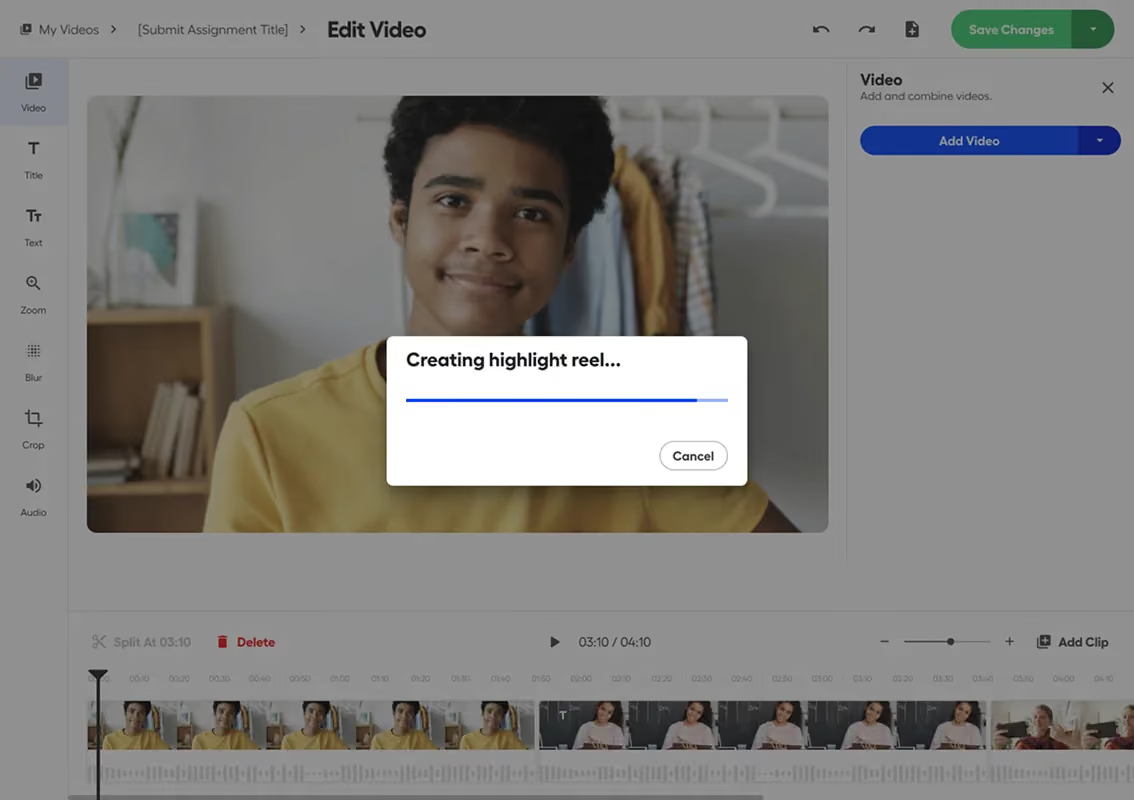
Full audio editing is now live in the Screencastify Editor. Discover how separate audio tracks, multi-track editing, and built-in voiceover recording give you more control over every sound in your video.
More control over your sound: separate audio tracks, multi-track editing, and voiceover recording built right into the editor.
If you've ever tried to fix the audio on a video, you know the frustration. The sound is locked to the picture, so turning down a noisy clip, swapping in a cleaner take, or adding background music means fighting the timeline instead of working with it.
This update changes that. Audio now lives on its own in the editor, with the same editing tools you already use for video, plus the ability to record narration without leaving your project. Here's what's new.
Audio gets its own track
Every project now has a dedicated audio track that sits below your video, so you can see and adjust your sound on its own. You can also bring in your own audio, importing a file straight from your device or your Drive and dropping it onto the timeline.
When a clip's audio and video are joined but you only need to touch one of them, select the clip and click Detach audio. The two split into separate lanes, ready to edit independently.
Perfect for: cleaning up a recording, replacing narration, or adding music to an existing video.
Edit audio the way you edit video
Everything you can do to a video clip, you can now do to an audio track:
Split, cut, and trim to get the timing right
Move clips along the timeline to line them up
Adjust the volume of each track on its own
Delete what you don't need
Undo and redo any change
Splitting works the way you'd expect. If a clip still has its audio and video joined, splitting cuts both at once. Detach them first, and you can split the video or the audio on its own.
Layer multiple tracks
One track is rarely enough, so you can now stack several. Add background music under your narration, drop in a sound effect, and keep your original audio all at the same time, with each track editable on its own.
Arranging them is straightforward: drag and drop clips between tracks and they snap into place, or move them into different lanes to stay organized. A reworked timeline keeps up with longer projects too. You can scroll horizontally and vertically, and use the new handle to resize the timeline to fit how you work.
Perfect for: scoring a lesson, mixing multiple voices, or building a more produced video.
Record a voiceover without leaving the editor
You can now record narration directly into your project, no separate app or re-importing required.
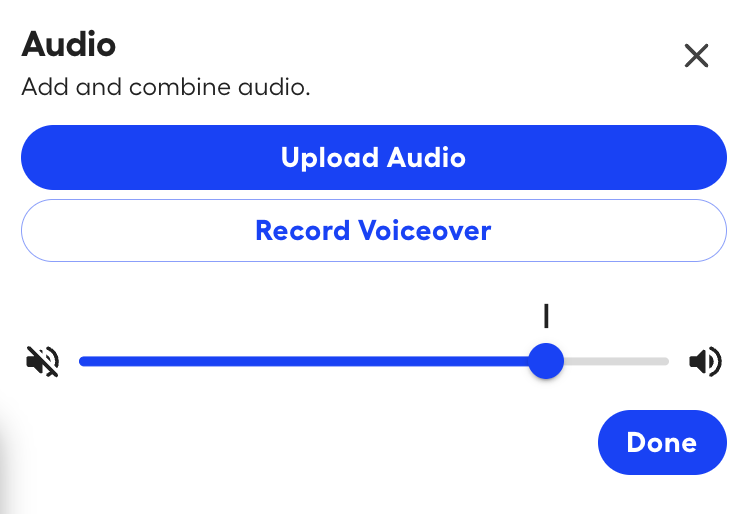
Open the Audio panel and you'll find two options: Upload Audio for files you already have, and Record Voiceover to capture something new. Choose Record Voiceover, pick your microphone from the dropdown, and click Start Recording. A three-second countdown gives you a moment to get ready.
Recording is built to feel like narrating to picture:
Your voiceover lands as a new track, right where the playhead is
The video plays as you talk, so you can narrate to exactly what's on screen
Your original video audio mutes while you record, keeping the take clean
A live timer shows how long you've been recording
Recording more than one take? Each new voiceover lines up after the last, and if a take would overlap, it moves into its own lane. When you're done, click Stop Recording and the track settles into place, ready to trim, move, and mix like any other.
Perfect for: adding narration to a screen recording, walking through a process step by step, or giving feedback in your own voice.

.gif)
.avif)