Turn any captioned video into text: Download transcripts in Castify
Product Updates
Nov 20, 2026
Turn any captioned video into text: Download transcripts in Castify
You can now download the transcript of any captioned Castify video as a .txt file. Use it to write recaps, build documentation, and reuse what your team records.
A lot of useful information gets said in videos: product walkthroughs, process explanations, project updates, customer answers. Until now, getting that information into a document meant rewatching the video and typing it out.
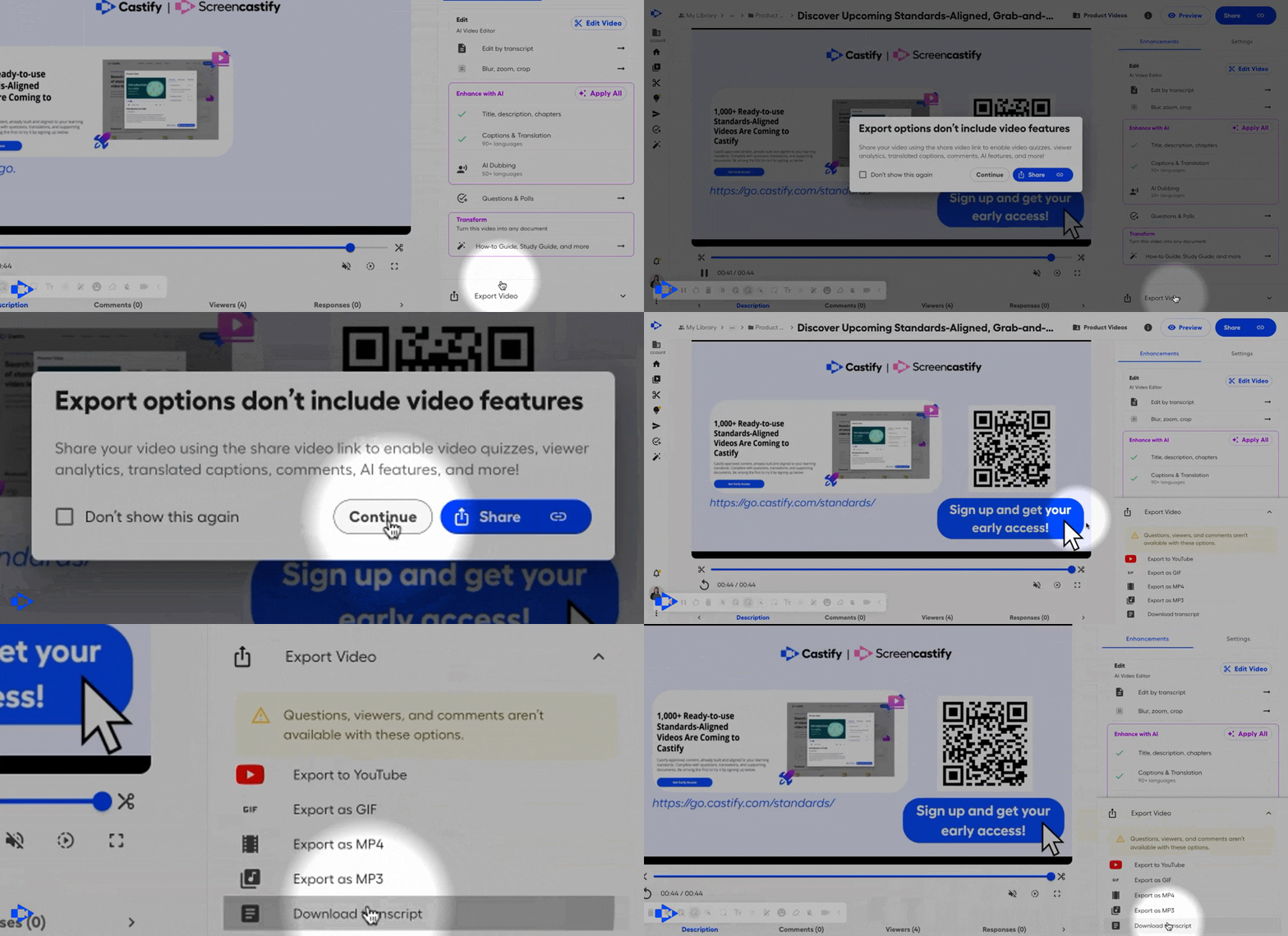
Now you can download the transcript of any captioned video in Castify as a text file, straight from the video's Export drawer.
In short: For videos that have captions, open the Export drawer on the video page and download the transcript as a .txt file. This isn't available for YouTube videos.
Downloading a transcript
What is transcript download in Castify?
Transcript download lets you save the full text of a video's captions as a plain .txt file. You can open it in any text editor or paste it into a document, email, wiki, or other tool.
Which videos can I download a transcript for?
You can download a transcript for any Castify video that has captions. The option isn't available for YouTube videos.
How do business teams use video transcripts?
A transcript turns a recording into text you can search, edit, and reuse. Here are some ways teams put it to work:
Turn walkthroughs into documentation. Operations and IT teams can use the transcript of a process walkthrough as the starting point for a written SOP or help article.
Share recaps with people who prefer to read. Managers can paste the transcript of a team update into an email or chat message for people who'd rather skim than watch.
Repurpose product demos. Marketing and product marketing teams can pull language from a recorded demo into blog posts, release notes, or sales emails.
Build a support knowledge base. Support teams can turn recorded answers to common customer questions into written help-center articles.
Create training materials. Learning and development teams can use training video transcripts to build handouts, quizzes, and reference guides.
Summarize with other tools. Anyone can paste a transcript into the writing or AI tools their company already uses to draft a summary or action items.
How do I download a transcript?
Open a video that has captions.
Open the Export drawer on the video page.
Download the transcript. It saves to your computer as a .txt file.
Frequently asked questions
What file format is the transcript?
Transcripts download as plain text (.txt) files, which open in any text editor, word processor, or notes app.
Why don't I see the transcript download option?
The option appears for videos that have captions. It isn't available for YouTube videos.
Where do I find the download option?
It's in the Export drawer on the video page.
Do I need to turn anything on?
No. Transcript download is live in Castify now.
Get more out of every recording
Your team's videos already contain the explanations, decisions, and know-how people need. With transcript download, that content is easy to reuse in writing too.
Want to see how Castify helps teams share knowledge with video?Schedule a demo
Related Blog
Product Updates
November 18, 2026
Find any video in seconds: Introducing Global Search and the All view in Castify
Read more
Product Updates
November 13, 2026
New in Castify: Custom Video Thumbnails
Read more
Product Updates
September 23, 2026
Castify Admin Analytics - Intelligence Across your Organization